
You’ve got your trigger working. You’re feeling good. Then you go to queue a job and ServiceM8 asks for a queue_uuid. Not the name of the queue, a UUID. Same with creating a job, it wants category_uuid, not “Boiler Service”. Same with booking diary time, it wants the Staff identifier staff_uuid, not “Dave”.
ServiceM8 turns pretty much all information about your account into a series of identification numbers – UUIDs for short.
Think staff, job categories, job queues, jobs – that kind of thing.
Being able to automate based on these things comes down to knowing what the UUID is for the thing you’d like to create your automation around, so here’s a really simple technique for finding out what the UUIDs for any given part of ServiceM8.
Add an HTTP Request node to a blank workflow:
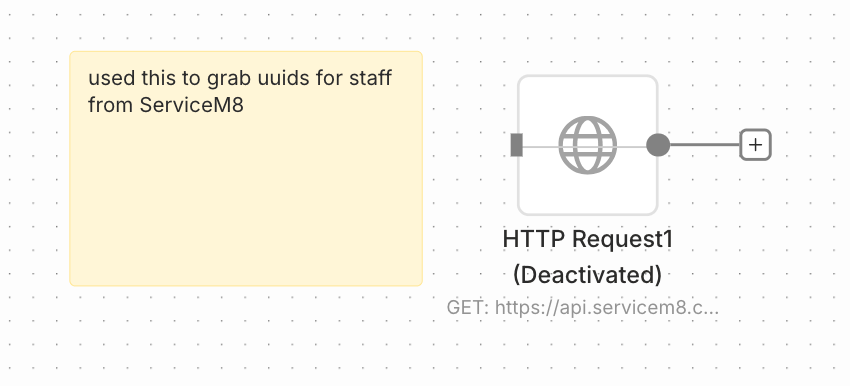
Set the following within that node:
Method: GET
URL: one of the ones below, depending on which type of UUID you need
Authentication: Generic Credential Type, then Header Auth
Credential: Name = X-API-Key, Value = your ServiceM8 API key
Then, hit execute. Every UUID in your account comes back in the output panel where you can copy it.
Here are the URLs:
The base URL is https://api.servicem8.com/api_1.0/
Staff: staff.json
Job categories: category.json
Queues: queue.json
Job templates: jobtemplate.json
Badges: badge.json
Tax rates: taxrate.json
Materials (your price list): material.json
Forms: form.json
Locations: location.json
Email templates: emailtemplate.json
SMS templates: smstemplate.json
Document templates: documenttemplate.json
Security roles: securityrole.json
Clients: company.json
Jobs: job.json
So for staff it’s https://api.servicem8.com/api_1.0/staff.json and so on.
Three things that will save you some time:
- ServiceM8 doesn’t actually delete records, it just sets
activeto 0. Those dead ones still come back in your results. Stick?$filter=active eq 1on the end of the URL to clean it up. - Do this UUID fetch once, not on every execution. Pull the UUIDs, paste them into a Set or Code node at the top of your workflow. That will give you one place to update when something changes, and you’re not burning API calls on a lookup that returns the same answer every time.
- And if you can’t find API Keys in your ServiceM8 settings, check your plan. Not every plan has it switched on.
Save this one. You’ll want it the first time you try to queue a job.
What are you building? Let me know in the comments and I’ll tell you which UUIDs you’re going to need.
Are you already using n8n? I’d love to hear what you’re automating – or what you wish you could automate.
Whether you use ServiceM8, run a trade business, or simply want to save time on repetitive admin, ask me about ready-made and custom n8n workflows. Drop a comment or send me a message and I’ll help you work out what’s possible.
Ready to try n8n? You can sign up using my partner link: https://hazelwhicher.co.uk/get/n8n
#WorkflowWednesday

