
Your customer is standing in the doorway of a tired old bathroom that only has a shower.
No bath. A shower screen that’s seen better days. Grout you’d rather not look at too closely.
You’re explaining where the bath can go, the large format tiles, the matt black fittings. You can see it perfectly in your head.
They can’t.
And that’s the gap that loses you jobs. Not your price. Not your reviews. The fact that the customer is being asked to spend thousands on something they can only half picture.
People say yes to what they can see.
So this week’s tip is simple. Stop only sending photos of what the job looks like now. Start sending what it could look like when you’re finished.
ServiceM8 now has a feature called Imagine that lets you do exactly that, straight from a job photo.
Here’s how to use it on site:
1️⃣ Take a photo of the existing situation and save it to the job as you normally would.
2️⃣ Open the photo from the job Diary and tap Imagine (the little wand icon).
3️⃣ Describe the change, e.g. “replace the shower with a bath, grey large format tiles, matt black fittings”.
4️⃣ Tap Generate, then drag the divider to compare before and after.
5️⃣ Not quite right? Tap Try Again, tweak your description and go again.
6️⃣ Tap Save and the new image sits in the Diary alongside the original, which stays untouched
Then add both into your proposal. The “now” and the “after”.
Here’s one I made earlier…..
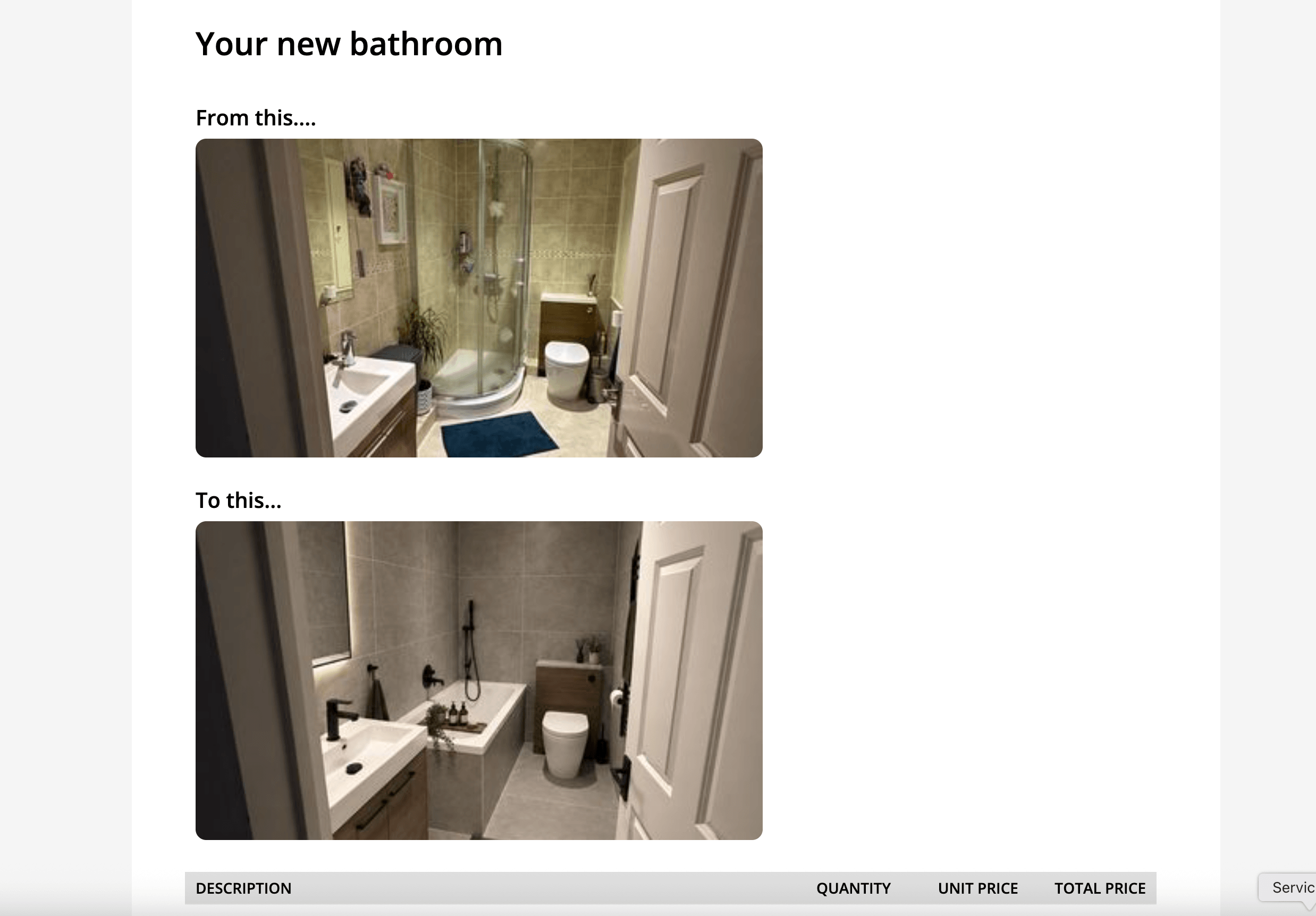
If you’re on iPhone or iPad, you can even open a photo that’s already in your Proposal gallery and use Imagine on it right there.
A few tips to get better results:
👉 Be specific. Colours, finishes, styles, where things should go. “Make it look nicer” won’t get you far
👉 Stick to one clear change per request
👉 Use a clear photo with the area you’re working on fully in shot
👉 Add a reference photo if you’ve got one of the product or finish you’re proposing
👉 On iPhone or iPad you can draw on the photo to show exactly where the change should go
And one important bit. Always check the image before it goes to the customer, and make it clear it’s an illustration of the finished work, not a promise of exactly how it’ll look. You want them excited, not holding you to a picture.
This works for so much more than bathrooms. Kitchens. Driveways. Garden rooms. Fencing. Decking. Lighting. Even an outdoor socket or EV charger on the side of a house. If the customer is trying to picture it, show them.
If you can’t see Imagine in your app yet, update ServiceM8 and your phone’s operating system to the latest versions (ios 18 +). It also needs ServiceM8 15 features to be switched on for your account.
Give it a go on your next quote visit and let me know how you get on. I’d love to see your before and after photos in the comments!

