
Have you used the 2025 updates Imagine feature yet?
From ServiceM8 – “Explaining what an outcome is going to look like to a client can be tricky — you can see it in your mind, but they can’t. What if you could show them? Now, if you can describe it, you can bring it to life. “
I’ve had a bit of a play around with it now and I have to admit that I’m pretty impressed.
It’s becoming a more and more common feature across AI tools, but to have it available directly within the job diary on the online / desktop version is actually really handy.
You could add these ‘imagined’ images to proposals, or quote emails, or even show them to the customer before you do a site visit. They’re saved to the job diary automatically once you’ve generated them.
To use the new Imagine feature, all you have to do is open a job photo from a Job Diary, select Imagine, describe your vision, and show clients what you mean.
It’s actually the opposite of imagining.. you don’t have to imagine any more.
- Want to show the customer what beautiful column radiators will look like in their space? You can…
- Want to replace one item with another item? You can…
- Want ServiceM8 AI to redesign or reimagine the entire space to the client’s brief? You can…
ServiceM8 offer examples in a dropdown, or you can type your own request in.
Plus, you can add in other photos to extend your vision or create image combinations.
I tried out a few on my bathroom –
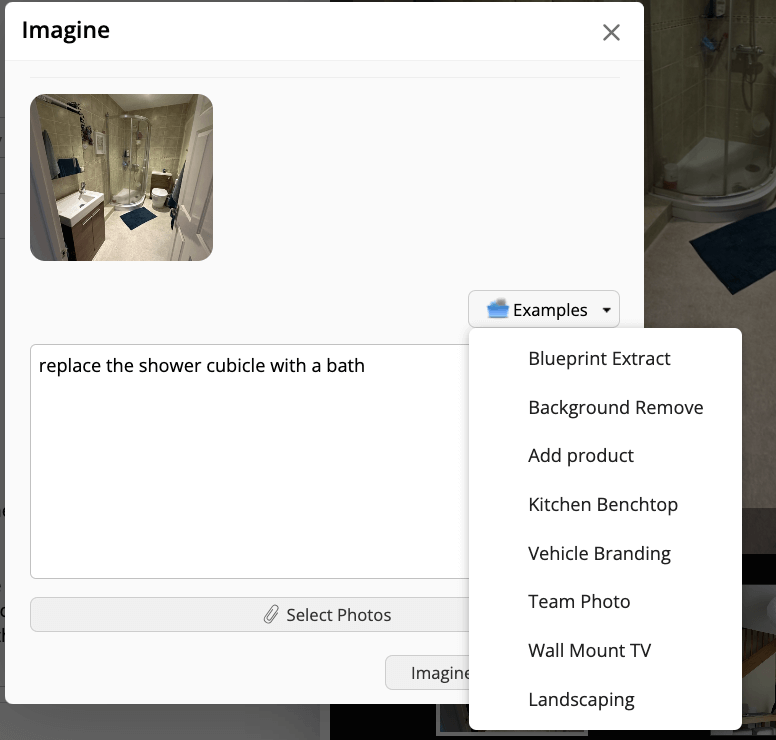
Examples of ‘imaginings’ you can use include –
- Blueprint Extract – Convert this blueprint to a 3d isometric photo
- Background Remove – Remove the background from this photo
- Kitchen Benchtop – Change the island benchtop in the photo to be black marble
- Vehicle Branding – Apply a vehicle branding wrap to the white van, using the logo from the second photo
- Add Product – Add the product in one photo into the scene in the other photo
…and more!
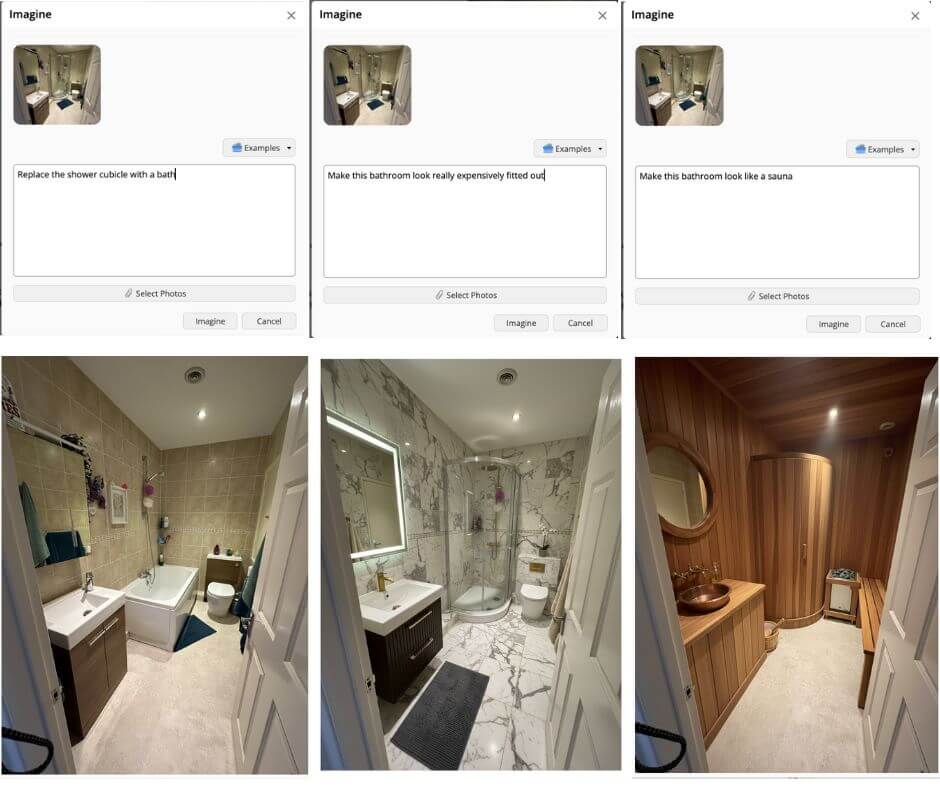
You can even add hats to doggos! 🤣

The possibilities are endless!
Have you used the Imagine feature yet?
What will you use it for?

