
Though you don’t need to backup your ServiceM8 data, it can be useful to take a snapshot of all of your data; search for & gather client documents or just for annual admin and peace of mind.
How to download a backup
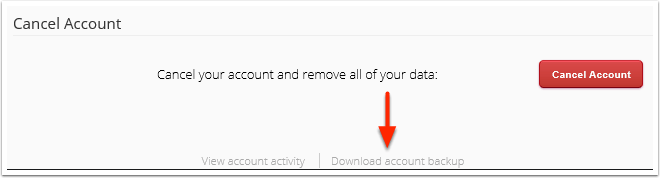
Go to Account > Settings > ServiceM8 Account > Download account backup
The Download account backup link is at the bottom of the ServiceM8 Account page.
Click Create Backup to begin the download.
The backup process will take between a few minutes to several hours to complete, depending on the amount of data stored in your account. ServiceM8 must collect all of your jobs, clients, materials and documents ready for you to download in a single file.
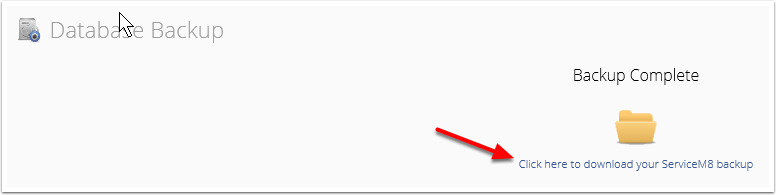
If you wait for your backup, once the download is complete you can download the data by clicking on the prompt.
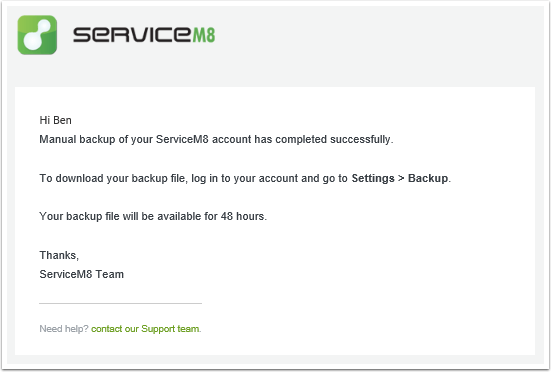
You will receive an email when your backup is ready, so you can safely close this window or navigate to another page.
Extra Notes –
- An account backup can be performed a maximum of once every 24 hours.
- An account backup is for reference only — the data cannot be “imported” into a new or separate ServiceM8 account.
- You can’t choose what to download – it’s a full backup of everything, but you can then search the contents of the backup.

