
AI phone answering is getting a lot of attention at the moment.
If you run a plumbing, heating, electrical or other trades business, I suspect you’re probably somewhere between:
“That could actually be really useful…”
and
“There is absolutely no way I’m letting a robot speak to my customers.”
Both reactions are pretty reasonable.
The interesting thing for me isn’t whether AI can technically answer a phone call.
It’s whether it can do it reliably enough to be useful in a real business, without creating more problems than it solves.
That’s why I’ve put together the video below showing how I would approach setting up ServiceM8’s AI Phone Agent.
The real comparison isn’t AI vs a receptionist
One of the biggest mistakes I think people make when assessing AI phone answering is comparing it to an experienced human receptionist.
Of course a good human is better. But that often isn’t the actual alternative.
For many small trades businesses, the alternative is:
- the phone ringing while you’re driving
- a missed call while you’re on site
- a voicemail nobody wants to leave
- or a customer immediately calling the next company on Google
So the more useful question is:
Could an AI Phone Agent handle some of those calls better than not answering them at all?
I think, in the right circumstances, the answer is yes.
But I definitely wouldn’t recommend simply switching it on across the whole business and hoping for the best.
Start with the lowest-risk calls
My recommendation is to start with After Hours calls.
It’s one of the safest ways to test the system because these are calls you may otherwise have missed anyway.
ServiceM8 currently allows the Phone Agent to operate in three different modes:
Business Hours
Calls received during your normal operating hours.
After Hours
Calls received outside those operating hours.
Voicemail
Calls that would otherwise have gone through to voicemail.
You don’t have to switch all three on.
In fact, I wouldn’t.
Start small, learn how the agent behaves, and expand it only once you’re comfortable with it.
Use the Structured setup first
ServiceM8 gives you two main ways of configuring the Phone Agent: Structured and Custom.
If you’re just getting started, I’d strongly recommend Structured.
It guides you through the information the agent needs rather than asking you to create a large set of custom AI instructions from scratch.
Once you understand how the agent behaves and what your customers actually ask, you can move towards a more customised setup later.
Give the AI decent information
Like any AI tool, the quality of the answer is heavily influenced by the quality of the information you give it.
At a minimum, I’d make sure your Phone Agent understands:
- the services you provide
- the services you don’t provide
- your service area
- your business hours
- what counts as an emergency
- how your pricing or call-out charges work
- which payment methods you accept
Be specific.
If you cover particular towns or postcodes, list them.
If you only offer certain types of work, say so.
If you have a specific definition of an emergency, explain it.
The more ambiguity you remove at the setup stage, the less room there is for the agent to make a mess of things later.
Decide what should happen to each call
The Phone Agent can do more than simply take a message.
Depending on your setup, it can perform actions such as:
- sending a customer to your online enquiry form
- recording a message
- flagging an enquiry as urgent
- transferring the caller to staff
- transferring to an on-call number
- providing information from your FAQs
- checking whether an address falls inside your service area
This is where you need to think about your actual business process.
For example, if somebody calls after hours asking for a normal quote, perhaps the best outcome is to send them an online enquiry link.
If somebody reports a genuine emergency, perhaps they need to reach your on-call engineer.
Those are two very different calls and shouldn’t necessarily follow the same route.
Test it by trying to break it
Before customers speak to the agent, test it properly.
And I don’t mean ringing up and politely asking the exact question you expect it to handle.
Try to break it.
Pretend to be:
- an angry customer
- a vague customer
- somebody reporting an emergency
- somebody asking awkward pricing questions
- somebody who keeps interrupting
- somebody calling with poor signal or lots of background noise
The point of testing isn’t to prove that your setup works.
It’s to discover where it doesn’t work while the consequences are still small.
Every failure during testing gives you something useful to improve.
Don’t set it and forget it
Once the agent starts answering real calls, I’d review the call history regularly.
ServiceM8 records the conversation and transcript, which gives you an opportunity to see exactly what happened.
Look for:
- customers getting confused
- questions the agent couldn’t answer
- incorrect routing
- awkward wording
- enquiries being classified incorrectly
- situations where your FAQs need more information
For the first few days, I’d probably look at every call.
Over time, you should start seeing patterns.
Those patterns are what allow you to improve the setup.
You may never need AI answering during business hours
Implementing the ServiceM8 AI Phone Agent doesn’t mean you suddenly have to hand your entire phone system over to AI.
If you already have somebody answering calls during normal working hours, keep them doing it.
You could use AI purely for:
After Hours + Voicemail
That alone may be enough to capture enquiries that would previously have disappeared.
And that’s the approach I’d favour for many small trades businesses initially.
My recommended rollout
If I were implementing this in a business tomorrow, I’d keep it simple:
- Check the business hours stored in ServiceM8.
- Set up the Phone Agent using Structured mode.
- Add detailed FAQs and business information.
- Make sure the Simple Online Enquiry form is configured.
- Decide how emergencies and normal enquiries should be routed.
- Switch on After Hours mode only.
- Run a number of deliberately difficult test calls.
- Go live.
- Review every real call for the first few days.
- Refine the setup before considering any further modes.
AI phone answering doesn’t need to be an all-or-nothing decision.
Treat it like any other new business process:
Start small, test it, monitor it and improve it.
That’s much safer than simply switching everything on and trusting the technology to work it out.
If you’re using the ServiceM8 AI Phone Agent already, I’d be really interested to hear how you’re finding it.
And if you’re setting it up now, the full video above walks you through the settings, the different call actions and the testing process in more detail.
Full video transcript
Video Transcription
So, there’s a lot of hype around AI phone answering at the moment, and honestly I think a lot of trades businesses are simultaneously curious about it and slightly terrified of it.
Because the fear is: what if it sounds rubbish? What if it mishandles an emergency? What if the customers hate it? What if it damages my reputation?
So rather than just walking you through buttons and settings, what I wanted to do in this video is show you how I’d actually approach rolling this out in a real trades business.
The reality is that most small trades business owners physically cannot answer every call. If you’re under a boiler, driving, on site, quoting or dealing with another customer, the phone rings out, and most customers aren’t leaving voicemails anymore.
So for me, the real comparison isn’t AI versus a full-time receptionist. It’s AI versus voicemail, or AI versus completely missed calls.
And even if you eventually call back, speed matters massively now. Customers are used to immediate responses from literally everything else in life.
Now, just to be clear, I don’t think this AI Phone Agent is magic. I don’t think it replaces great customer service. And I definitely don’t think you should just switch it on and hope for the best.
But I think there are some really smart, low-risk ways to use it.
So, let’s get into the initial settings and what you’re going to be looking at, so that you can build familiarity with it.
Firstly, you’re going to have to be using ServiceM8 Phone already.
If you come to Account Settings and then go to ServiceM8 Phone, you’ve got these settings here. If you’re on the waitlist for Phone Agent, you should have had a notification and you can sign up for it.
You’ll have a ServiceM8 Phone Agent option here and you can hit Settings.
The first thing to understand is you’ve got three modes. You’ve got Business Hours, After Hours and Voicemail.
Business Hours will use information from your FAQ, which we’ll talk about in a second, but it will primarily take what it sees your business hours are in your account settings — your account preferences.
So if I come over to Preferences and show you Company Information, it’ll take them from here.
Firstly, you want to make sure that those are all present and correct.
If I go back to the settings, we’ve got three call modes.
After Hours will pick up anything outside of those hours. So, for me, it’s before nine o’clock, after five o’clock and at the weekend.
And then Voicemail will be everything else — every time a customer goes to leave a voicemail.
The next thing to note is you can give it a name and you can choose its personality. Again, this is just the way it’s going to talk to your customers.
Your main choice is then whether you use the setup method of Structured or Custom.
I would strongly recommend that you start with Structured, because then you can build structured questions that you answer in detail, and you kind of spoon-feed it the information in a structured way.
If I show you Custom, it turns it into a set of custom instructions that you would have to build. Again, you can use AI to help you build these.
The quality of the instructions is obviously going to determine the quality of your agent.
So, just to get started, use Structured, and I’ll talk you through the FAQs that you need to have added.
In terms of the settings for each mode, they all look the same.
If we come to the After Hours settings, you have a greeting that you need to set.
Then it groups the different types of enquiries so that you can choose how you want the agent to deal with them.
You’ve got Quote and Service Requests, New Enquiries, Current Jobs and Clients, Other Calls, and Special Cases.
For each one, the agent can perform different actions. Again, I’ll talk you through what those options are, but they’re fairly self-explanatory.
This tick box here works as an additive measure. It can flag messages as urgent.
So, if it’s really important for you to know about a particular type of enquiry — Quote Requests, for example — it will create the online booking and allocate it in the inbox as urgent.
That’s an additive measure rather than a replacement measure.
For each one, you would just choose the action and go from there.
That’s the Structured method of setup.
Next, I’m going to talk you through the stages of rollout.
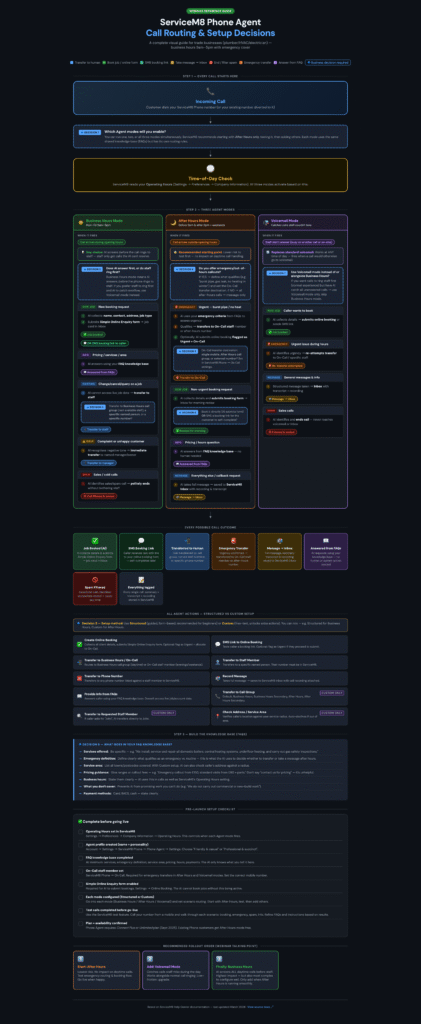
Here’s a guide that’s been created from all of the setup instructions and everything that I can see about the AI agent. It gives you a call routing and setup decisions summary.
Every call starts here: incoming calls. The customer dials your ServiceM8 Phone number or your existing business number.
The first decision to make is which agent modes you will enable. This is talking about your Business Hours mode, your After Hours mode and your Voicemail mode.
ServiceM8 will look at the modes that you’ve got and then do a time-of-day check. It reads your operating hours in Settings, Preferences, Company Information, which I just showed you.
All three modes are activated based on these hours, so it’s really important to get these right.
This then details the three agent modes.
Business Hours mode is going to be during your business hours.
After Hours is self-explanatory. It’s before and after those business hours and at weekends.
Then Voicemail mode catches calls that couldn’t be taken.
The After Hours mode is actually your recommended starting point because you would be losing these calls regardless, so this is a great place to start.
This diagram will take you through all of the decisions, and there are then details of all of the call outcomes.
But if I show you the actions first, these were the actions in the dropdown and you’ve got choices.
You’ve got Create Online Booking. This sends the customer an SMS link to the online booking page, so that’s to your Simple Online Enquiry form. It means they can submit their own details and, if you tick the box next to it, it’ll flag it as urgent.
You can have it transfer to on-call staff. Again, depending on your ServiceM8 Phone settings, if you’ve set up a secondary call group or an After Hours call group, you can have it transfer to there.
You can have it transfer to a specific staff member or to a specific phone number.
You can get it to record a message, so it takes a full message and saves it to the inbox with the call recording attached.
You can provide information from your FAQs.
You can transfer it to a call group or registered staff member, and you can check the address and service area.
You can see some of these options are highlighted. These ones are available if you pick the Custom mode of setup.
I’m recommending that you start with Structured, so you’ve got these seven actions available to you.
Then, when you’re ready, you can develop it out to Custom.
Understanding the actions is really important.
The next thing you want to do is build out your knowledge base.
I recommend you have at least seven questions and start with these. You want to answer them in detail.
I’ll give you a template that you can use and some examples of answers to these questions. But start with these seven questions in terms of adding Structured FAQs.
When you’re adding an FAQ, you want a question on each of those topics and you want to answer it in detail.
This gives you some guidance. Be specific. Define emergencies clearly. List all of the towns and postcodes covered. Give ranges or call-out fees, so get specific on your pricing if you can.
State your business hours clearly in here. It’ll use this as well as the operating hours setting.
Explain what you don’t cover, because you don’t want to be picking up work that you don’t actually offer.
And then include your payment methods.
There’s then a pre-launch setup checklist here.
Check your operating hours in ServiceM8.
Choose a name and personality for your agent profile.
Add your seven specific knowledge-base questions and get those up and running.
Decide what you’re doing with your on-call staff member setup, so you would go to Secondary Call Groups in the Phone Settings.
You also want to make sure that you’ve got your Simple Online Enquiry form enabled, so I’ll show you that now.
To do that, you go to Account, Settings, ServiceM8 Add-ons, start typing “Simple” and it’s here.
You want to make sure this is on and, if it is on, this is your link. You can test that out.
Just a quick tip: make sure that the logo you’ve saved in your account settings is of a reasonable size, so ideally under 100 kilobytes.
If this logo image is massive — if it’s over about 100K and up in the megabytes — it’s going to slow the page down. People get impatient, so you want to make sure that your logo is saved efficiently.
If you need help doing that, let me know. But a website that I use pretty much every day is one called TinyPNG. You can drop your logo in there and it will compress it for you.
So make sure you’ve got your Simple Online Enquiry form set up and make sure your logo image is small and manageable.
Coming back to this pre-launch setup checklist, you want to make sure you’ve got each mode configured.
Pick Structured and then just start with After Hours.
Again, it says here: start with After Hours, test it and then add the others.
You then want to test it.
In terms of testing before you go live, you want to test different scenarios. Testing is all part of the process because you’ll need to refine your setup and refine your instructions.
I’d recommend that you come back to your Phone Settings and use the Test Call feature.
If you’re doing this on a desktop, you can’t test this within the desktop version of ServiceM8 without a few additional steps.
You need to be on Chrome and you need to have the ServiceM8 Phone extension installed. Again, I’ll give you a link to that.
If you try to do Test Calls on the desktop version of ServiceM8 and you haven’t got that set up, it’s not going to work and you’re going to get frustrated.
You want to be using ServiceM8 on Chrome with the ServiceM8 Phone extension switched on.
You also need compatible headphones, whether that’s AirPods or just some way of answering calls on your computer.
That’s really important to stop you getting frustrated before you do your test calls.
When you’re doing your test calls, you want to pretend, through a number of scenarios, that you’re an angry caller, that it’s an emergency, that you’re a vague customer.
Maybe ask some pricing questions.
You want there to be some interruptions.
Maybe create an example of a customer with poor signal and a lot of background noise, so you can test out these different scenarios.
Your test calls should be trying to break what you’ve set up. That’s how you discover the weaknesses safely.
So, you test before you go live.
Existing ServiceM8 Phone customers get After Hours mode free, so that’s another reason for starting with the After Hours mode.
Then, once you’re ready, you switch it on with this button here.
After that, you want to go into a phase of monitoring.
Don’t just set and forget.
Monitor every single call that comes in.
Listen out for frustrations, where customers get stuck, where the routing doesn’t work as you want it to, or look for typos and that kind of thing.
Look for problems once it goes live.
And that’s it. Continue to refine it.
You probably need half an hour to an hour to get this set up initially and do some tests.
Then you want to put in a little bit of time each day to listen to the After Hours calls, see how it’s working, and then roll out what you’ve learnt to the rest of the modes.
You don’t ever have to use the Business Hours mode.
If you’ve got someone there to answer the phone, you don’t have to switch this on at all. You can just leave it as After Hours and Voicemail.
In terms of viewing the call history, you’ve got a View button here, so you’ll be able to review those calls.
As you can see, it records the entire transcript and you can see exactly how it’s responded.
Once you go live, you’re checking that call history here, and these are the specific calls that the AI agent has picked up.
So I hope that helps.
I’m going to give you this document here. I’m going to give you some examples and a template for you to build out these seven very specific questions to get you started.
Then get started and let me know how you get on with it.
Your Resources
Here’s your call routing and decision guide, referenced in the tutorial:
Your ServiceM8 Phone AI Agent FAQ template
Here’s an FAQ template that lays out the questions you need to add to your structured Phone Agent FAQs and good examples / what to avoid in terms of answers for each question.

